Invoice
Upload or replace your digital certificate
Timbro signs your invoices with the digital certificate of the person who represents your business. You upload it once, and that same certificate signs your test invoices, your live invoices, and your DGII certification tests.
Who can do it: the business owner or an administrator (Owner or Administrator).
Before you start
Section titled “Before you start”- The software certificate of the person who represents your business, from Avansi (Viafirma), Digifirma, or Novosit, exported as a .p12 or .pfx file.
- That file’s password. It is not the same as your password for DGII’s Oficina Virtual.
If you don’t know how to prepare it, open “How do I prepare the certificate?” on the same screen.
Upload your certificate
Section titled “Upload your certificate”Portal Timbro asks for the certificate in “Set up your business”, in the “Upload your digital certificate” step.
- In “Certificate file”, choose the .p12 or .pfx file.
- In “Certificate password”, enter that file’s password.
- Click “Upload certificate”.
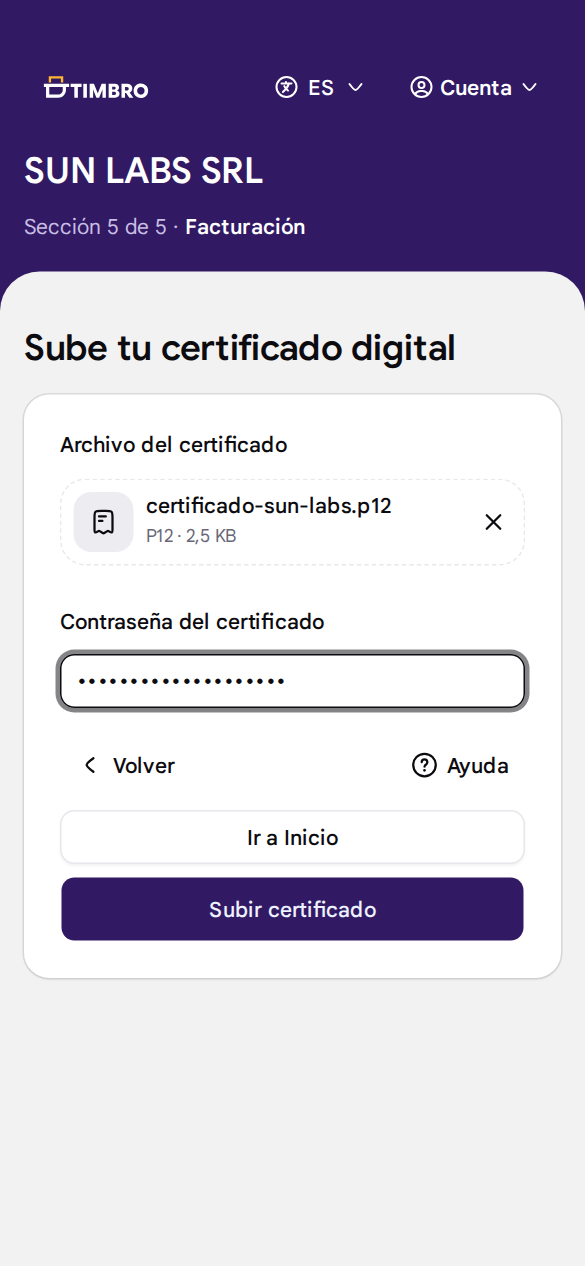
Once the certificate is active, Timbro sends your first test invoice for you. To follow it, see Issue your first test invoice.
Replace your certificate
Section titled “Replace your certificate”When you renew your certificate, replace it in Portal Timbro.
- Click “Settings” and then the “Invoicing” tab.
- On the “Digital certificate” card, check the “Expires” date and the “Signer”, and click “Replace certificate”.
- Choose the new file in “Certificate file” and enter its password in “Certificate password”.
- Click “Replace certificate”.

Portal Timbro confirms: “We replaced your certificate. From now on, we sign your e-CF with the new one.” The new certificate replaces the old one in your test invoices, your live invoices, and your DGII certification at the same time. That is why it has to be a valid certificate for the same business.
Before it expires
Section titled “Before it expires”Starting 30 days before the “Expires” date, the “Digital certificate” card shows you “This certificate expires soon. Replace it before it expires so invoicing does not stop.” Ask your certificate provider for the renewed certificate and replace it as soon as you have it.
If the certificate expires, you can’t keep invoicing until you replace it. Settings shows you “This certificate has expired. Replace it to keep invoicing.”, and Home asks you to “Replace your digital certificate to invoice live”.
Portal Timbro doesn’t send you this notice by email, so check the “Expires” date from time to time.
If something goes wrong
Section titled “If something goes wrong”| Message | What to do |
|---|---|
| “This password does not open the certificate. Check it and try again.” | Enter the password of the certificate file, not your Oficina Virtual password. |
| “We could not read this certificate. Choose another file.” | Export the certificate again as a .p12 or .pfx file and upload it again. |
| “This certificate has expired. Upload the renewed certificate.” | Ask your certificate provider for the renewed certificate. |
| “This certificate belongs to a different signer than the one registered for this business. Choose the registered signer’s certificate or contact us.” | Upload the certificate of the person who already signs for your business. If that person changed, write to us. |
If you’d rather have the Timbro team help you, click “Get help with your certificate” in “Set up your business”. Never send us your certificate’s password.