Get started
Issue your first test invoice
When you upload your digital certificate, Timbro sends a test invoice to DGII for you, and Portal Timbro shows you DGII’s response. Test invoices have no fiscal value.
Who can do it: the business owner or an administrator.
Before you start
Section titled “Before you start”- Set up your business to “Invoice” or “Collect and invoice”, and confirm your details in “Check your details”. Create your account and set up your business explains how.
- Have your digital certificate from Avansi (Viafirma), Digifirma, or Novosit at hand: the .p12 or .pfx file and that file’s password. That password is not the same as your Oficina Virtual password.
Upload your certificate
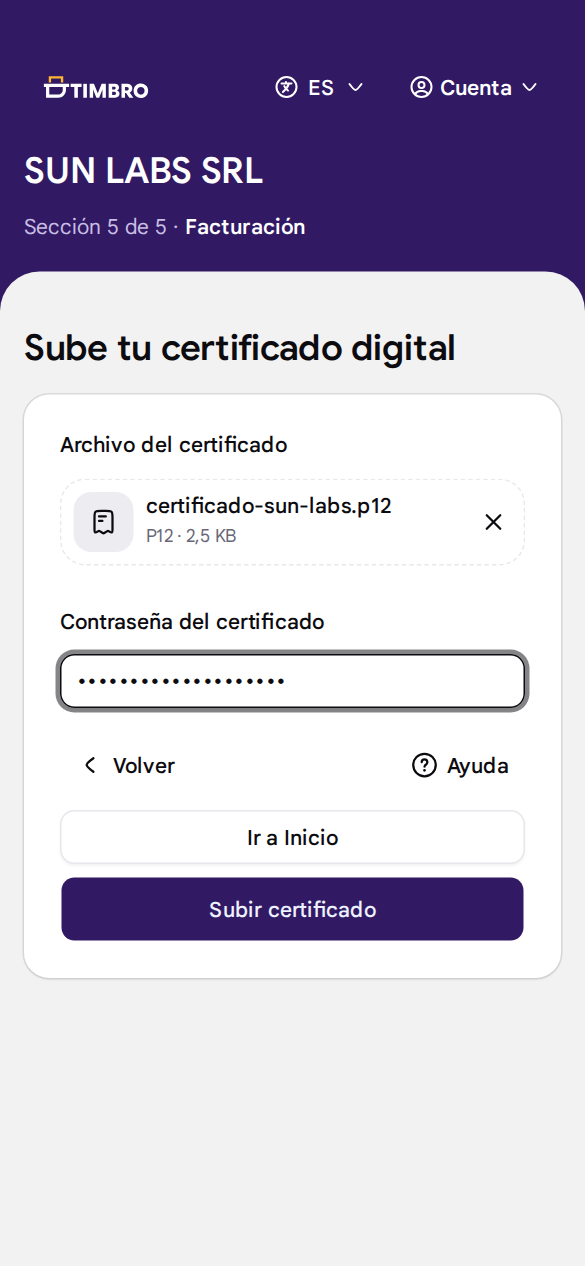
Section titled “Upload your certificate”- In “Upload your digital certificate”, click “Choose file” and choose your certificate’s file.
- Enter the “Certificate password”.
- Click “Upload certificate”.
If you left “Set up your business” before uploading it, click “Upload certificate” on Home.
Wait for DGII’s response
Section titled “Wait for DGII’s response”After you upload your certificate, Timbro writes your first test invoice and sends it to DGII. You don’t have to do anything else.
While you wait, Portal Timbro shows you “Waiting for DGII’s response”. You can click “Check now” to see whether DGII has answered, or click “Go to Home” and come back later.
When DGII accepts your invoice, the “Test invoicing” card on the last screen of “Set up your business” says “DGII accepted your test invoice.”
What no fiscal value means
Section titled “What no fiscal value means”Test invoices have no fiscal value. They let you check that everything works, but they don’t count as the invoice for a sale.
To issue invoices with fiscal value, you first have to get certified by DGII, record your e-NCF sequences, and start invoicing live. How you invoice with Timbro explains each step.
If something goes wrong
Section titled “If something goes wrong”| What you see | What you can do |
|---|---|
| “Your test invoice was not accepted” | Read “DGII’s response” and correct what it says. Then click “Send another test invoice”. If you don’t know what is missing, click “Get help with DGII”. |
| “This password does not open the certificate. Check it and try again.” | Enter the password of the certificate file, not your Oficina Virtual password. |
| “This certificate has expired. Upload the renewed certificate.” | Ask the company that issued your certificate for the renewed one, and upload it. |
| “DGII does not list your RNC as active” | Check your RNC’s registration with DGII. If it is active, write to us. |
If your test invoice was not accepted and you don’t know what is missing, click “Get help with DGII”. Get help from the Timbro team explains how.